
Set up a crypto hardware wallet so you can hold the keys to your cryptocurrency offline and verify transactions on the device. This guide is for beginners who have a supported computer or phone and want to configure a new wallet, receive funds, and test a small send. Allow 30-60 minutes for setup and extra time for network confirmations.

Get hardware and tech essentials delivered free with Prime
- Fast, free delivery on millions of items
- Prime Video, Amazon Music and more included
- Member-only deals all year
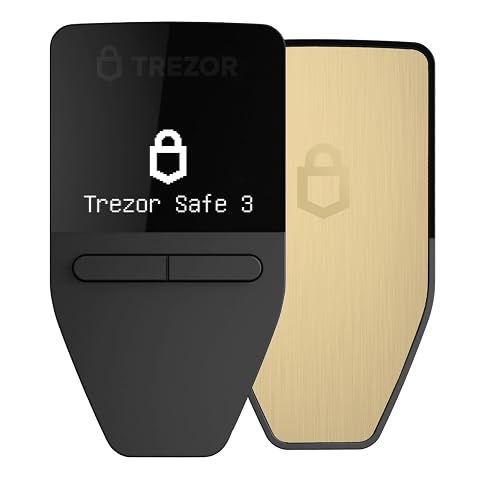
Trezor Safe 3 Crypto Hardware Wallet with Secure Element
- ✔ Brand: Trezor
- ✔ Model: TS3
- ✔ Security: EAL 6+ secure element

Ledger Nano X – Classic Crypto Wallet with Bluetooth
- ✔ Brand: Ledger
- ✔ Model: Nano X
- ✔ Connectivity: Bluetooth, NFC, USB

Ledger Nano X Crypto Hardware Wallet – Bluetooth (Black + Billfodl)
- ✔ Brand: Ledger
- ✔ Model: Nano X
- ✔ Bundle: Black + Billfodl
Difficulty: Beginner | Time: 30-60 minutes, plus blockchain confirmation time
What You’ll Need
Tools & Materials:
- A hardware wallet from its manufacturer or an authorized seller
- A computer or phone that meets the wallet maker’s requirements
- The wallet maker’s official app, downloaded from its official website or verified app store listing
- The wallet’s supplied recovery phrase card or another offline recording method recommended by the manufacturer
- A small amount of cryptocurrency for a test transfer, if you plan to send funds
Knowledge:
- Basic familiarity with installing an app and following on-screen prompts
- The difference between a public receiving address and a secret recovery phrase
- Awareness that cryptocurrency transfers may be irreversible and incur network fees
Allow time to update the wallet firmware through the manufacturer’s official instructions. Never enter a recovery phrase into a website, chat, email, or computer app. The recovery phrase grants control of the wallet funds; anyone who obtains it can take them.
Trezor Safe 3 Crypto Hardware Wallet with Secure Element
The Trezor Safe 3 is our most balanced recommendation because its security story includes several distinct pieces: an EAL 6+ secure element, open-source firmware, on-device OLED confirmations, and multi-share backup. Those features address different parts of ownership. The secure element protects sensitive operations, the screen gives us a way to review transaction details on the device, and multi-share recovery can reduce reliance on one backup location. Compared with either Ledger Nano X listing, this is the pick with the clearest emphasis on open-source firmware and recovery design.Its described setup through Trezor Suite should suit buyers who want an app-guided starting point, and support for thousands of assets gives it room to serve beyond a single coin. The tradeoff is that the listing does not offer the Ledger’s Bluetooth phone workflow, so buyers who expect to manage assets directly from a mobile device should verify their preferred connection path. The small, lightweight aluminum-and-plastic body is also listed as not water resistant; it calls for careful storage. Choose it for a more explicit security and backup feature set, and skip it if wireless mobile access is your main priority.
Pros:
- EAL 6+ secure element paired with open-source firmware.
- OLED screen supports on-device transaction confirmations.
- Multi-share backup offers an alternative to a single recovery point.
- Supports thousands of cryptocurrencies and tokens.
Cons:
- The listing does not describe Bluetooth connectivity for mobile use.
- Not water resistant, so storage needs care.
- Lightweight aluminum and plastic construction may feel less substantial.
Best for: Buyers who prioritize open-source firmware, device-screen confirmations, and a multi-share recovery approach.
Not ideal for: People who specifically want Bluetooth-based phone management or a water-resistant device.
Bottom line: We rank the Safe 3 first for its combination of open-source firmware, device confirmations, and multi-share recovery, provided Bluetooth is not essential.
“We rank the Safe 3 first for its combination of open-source firmware, device confirmations, and multi-share recovery, provided Bluetooth is not essential.”
Ledger Nano X – Classic Crypto Wallet with Bluetooth
If we expect to check or manage crypto from a phone, the Ledger Nano X has the clearest fit in this lineup. Bluetooth support for iOS and Android, alongside USB connectivity, makes it the mobile-first option here. Its 1.1-inch OLED display provides a device screen for confirmations, while Ledger Live is described as supporting buying, selling, sending, receiving, swapping, and staking. The listing also claims support for over 15,000 cryptocurrencies, giving it broad stated coverage compared with the Safe 3’s less specific “thousands” figure.That convenience comes with practical limits. The supplied compatibility details say it is not compatible with Chromebooks, and 2.05 MB of storage may constrain how many apps we keep installed at once. Buyers should also distinguish a broad asset claim from confirmation that a particular token or workflow is supported in their region and app setup. Compared with the Safe 3, this model puts more emphasis on wireless convenience than on a prominently described multi-share backup system. Choose it when phone access is central; choose Trezor if the listed recovery and firmware details matter more.
Pros:
- Bluetooth connectivity supports phone-centered management on listed iOS and Android devices.
- OLED display provides a screen for device-side confirmations.
- Ledger Live covers several common asset-management actions.
- Listing states support for over 15,000 cryptocurrencies and tokens.
Cons:
- Not compatible with Chromebooks according to the supplied specs.
- 2.05 MB of storage can limit installed apps.
- Bluetooth workflow depends on compatible devices and app support.
Best for: Crypto owners who want Bluetooth access from a compatible iOS or Android phone and a broad app-based workflow.
Not ideal for: Chromebook users or buyers seeking an explicitly described multi-share recovery feature.
Bottom line: We recommend the standalone Nano X for mobile-first management, with compatibility and app-storage limits checked before purchase.
“We recommend the standalone Nano X for mobile-first management, with compatibility and app-storage limits checked before purchase.”
Ledger Nano X Crypto Hardware Wallet – Bluetooth (Black + Billfodl)
This listing pairs a Ledger Nano X with a Billfodl, making the package the more recovery-oriented purchase among the two Ledger entries. The wallet itself is described as Bluetooth-enabled, with a certified secure chip, offline key storage, and support for a broad range of crypto and NFT assets. In its core use, it overlaps heavily with the standalone Nano X: both are designed around phone or computer management, and both note limited internal storage for installed apps. The bundle distinction is therefore about the included recovery accessory, not a different wallet platform.That distinction matters only if the Billfodl fits the buyer’s backup plan. The supplied description does not detail its capacity, materials, or exact contents, so we should verify those specifics before relying on it. The listing also says Ledger Live is required on a compatible smartphone or computer, which narrows the workflow just as it does for the other Nano X. Compared with the Safe 3, this package does not list open-source firmware or multi-share backup on the wallet itself. Pick it when you want the Ledger mobile experience and have confirmed the accessory’s role; choose the standalone Nano X if you do not need the bundle.
Pros:
- Includes a Billfodl accessory alongside the Nano X, according to the product title.
- Bluetooth and USB connectivity support a flexible Ledger workflow.
- Certified secure chip and offline key storage are described in the listing.
- Supports crypto and NFT assets through Ledger Live.
Cons:
- The supplied description does not explain the Billfodl’s capacity or exact function.
- 2 MB storage may restrict the number of installed apps.
- Ledger Live requires a compatible smartphone or computer.
Best for: Ledger buyers who want a Nano X package that includes a Billfodl accessory and have confirmed it suits their backup needs.
Not ideal for: Buyers seeking a different wallet design from the standard Nano X or who want fully specified backup details before choosing.
Bottom line: We see this as a bundle choice for Ledger users who want the included Billfodl and have checked its recovery role, rather than a separate Nano X alternative.
“We see this as a bundle choice for Ledger users who want the included Billfodl and have checked its recovery role, rather than a separate Nano X alternative.”
As an Amazon Associate we earn from qualifying purchases.
Before You Start
Buy the device from the manufacturer or an authorized seller. Check the package and device for signs of tampering, and consult the manufacturer’s guidance if anything looks altered or damaged. Use a private location to create and record the recovery phrase. Do not photograph it, store it in cloud storage, or share it with anyone claiming to provide support. If the device arrives with a prewritten recovery phrase or asks you to use a phrase supplied by someone else, stop and contact the manufacturer through its official support channel.
Confirm that the wallet supports the cryptocurrency and network you intend to use. Some assets require a specific network or account type; a matching token name alone does not guarantee compatibility. Network mismatches can result in funds being inaccessible or lost.
Step-by-Step Instructions
Step 1: Get the official wallet app
Visit the manufacturer’s official website by typing its address yourself or using verified packaging documentation. Follow its link to download the wallet app for your operating system. Check the publisher name and app details before installing, and avoid sponsored search results, unsolicited links, and third-party downloads.
Tip: A convincing lookalike app can steal wallet details. Use the manufacturer’s website to confirm the correct app and support address.
Check: The app opens and identifies the wallet model you own, or provides the maker’s documented setup flow.
Step 2: Connect and inspect the device
Connect or power on the device using the method in its instructions. Follow the prompts to select a new-wallet setup, set a device PIN if offered, and install any required official app or firmware update. Read the device screen before confirming changes. Do not restore from a phrase unless you are intentionally moving an existing wallet and have verified that phrase yourself.
Tip: Use only official firmware update instructions. Keep the device connected during an update and do not disconnect it while an update is in progress.
Check: The device completes setup or update and shows that it is ready to create a new wallet.
Step 3: Create and record the recovery phrase
Choose the option to create a new wallet. When the device displays the recovery words, write them down in the exact order on the supplied card or another offline medium recommended by the manufacturer. Keep the words private and out of view of cameras or other people. Complete the device’s phrase confirmation by selecting the requested words in order.
Tip: The recovery phrase is the master backup. Do not type it into the companion app or a support form. If you need a durable backup, follow the maker’s guidance for offline storage and protect it from theft, fire, and water.
Check: The device confirms the phrase check and lets you continue to the wallet interface.
Step 4: Secure the device and backup
Set a PIN that is difficult for another person to guess, if the device supports one. Store the written recovery phrase separately from the device in a private, access-controlled place. Do not keep both together in an exposed location. Review any optional passphrase feature carefully before enabling it: losing that passphrase can make the associated wallet inaccessible even when the recovery phrase is available.
Tip: A PIN protects access to the physical device; it does not replace the recovery phrase. The recovery phrase can restore the wallet on a compatible device.
Check: The device requests your PIN when required, and you know where the private backup is stored without entering its words into a connected device.
Step 5: Open the correct asset account
In the official app, add or open an account for the cryptocurrency you plan to use. Confirm the asset and network shown in both the app and the device documentation. If the app asks you to install an asset-specific component on the hardware wallet, follow the official prompts and verify the device screen before approving.
Tip: Tokens can exist on several networks. Confirm the sender and receiving wallet use the same supported network before transferring.
Check: The app displays an account for the intended asset and network, with a balance and receiving option.
Step 6: Verify a receiving address
Select Receive in the app and choose the correct asset account. When prompted, display the address on the hardware wallet itself. Compare the address shown on the device with the address in the app, character by character or using the wallet’s supported verification method. Approve only if they match. Copy the verified address or scan its QR code for the sender.
Tip: Malware can replace a copied address. Always use the hardware wallet screen to confirm the destination before sharing or sending funds.
Check: The address approved on the device matches the receiving address in the app and is for the intended asset and network.
Step 7: Send a small test amount to the wallet
From the exchange or wallet that currently holds your funds, choose Withdraw or Send. Paste or scan the verified receiving address, select the same network, and enter a small amount you can afford to test. Review the full address, network, amount, and fee before confirming the withdrawal. If the sender offers address whitelisting, follow its instructions and account for any activation delay.
Tip: Transfers may be irreversible. Do not send your full balance until the test has arrived and you have confirmed that the wallet shows the correct asset.
Check: The sending service shows a transaction ID or pending withdrawal, and the wallet later displays the test amount after the network confirms it.
Step 8: Test a small outgoing transfer
If you need to confirm that sending works, choose a destination account you control and that supports the same asset and network. Start a small transfer from the wallet app. Read the destination address and amount on the hardware wallet screen; approve only when both are correct and the fee is acceptable. Wait for the network to confirm the transfer.
Tip: The app prepares the transaction, but the device should show and approve its key details. If the device display does not match your intended transfer, reject it.
Check: The app shows the outgoing transaction and the receiving account records the expected test amount after confirmation.
Common Mistakes to Avoid
- Entering the recovery phrase into a website, app, or message after a support prompt. — Keep the phrase offline and private. Contact support only through the manufacturer’s official site, and never disclose the words to support staff.
- Sending funds to an address on the wrong network or for an unsupported asset. — Check asset and network compatibility on both ends before sending, then verify the receiving address on the hardware wallet screen.
- Skipping a test transfer and sending the full balance immediately. — Send a small amount first, wait for confirmation, and check that the intended account displays it.
- Storing the recovery phrase only as a photo or cloud note. — Record it offline using the maker’s recommended method and keep the backup private and protected.
Troubleshooting
Problem: The official app does not recognize the device.
Solution: Check the cable, port, battery, and connection instructions. Restart the app and device, then install the maker’s current official app or driver. Use the manufacturer’s official support page if the device still is not detected.
Problem: The wallet shows no funds after a transfer.
Solution: Check the sender’s withdrawal status and transaction ID on the relevant network explorer. Confirm the asset account and network in the wallet app, then allow for network confirmation time. If the transaction is confirmed but the app has not updated, refresh or resync using the official app.
Problem: The receiving address on the device differs from the app.
Solution: Reject the address and do not send funds to it. Disconnect from suspicious software or links, reopen the official app, and generate a fresh receiving address. Verify it on the device screen again; contact the manufacturer through its official support channel if the mismatch persists.
Problem: A test withdrawal remains pending or fails.
Solution: Check the sender’s status, minimum withdrawal amount, selected network, and required fee. If the sender has not broadcast the transaction, follow its official withdrawal support process. Do not repeat the transfer until you know whether the original transaction was sent.
What Success Looks Like
The wallet is set up with a PIN if supported, the recovery phrase is recorded offline and kept private, and the official app shows the intended asset account. You have verified a receiving address on the hardware wallet itself. A small test deposit appears after confirmation; if you tested sending, the receiving account also shows the small outgoing transfer. The device screen matched the transaction details you approved.
Next Steps
Keep the wallet firmware and official app current using the manufacturer’s instructions. Store the recovery phrase where you can retrieve it if the device is lost or damaged, and periodically check that the backup remains legible and protected. Repeat a small test when changing networks, devices, or receiving workflows. For a lost phrase, suspected exposure, or address mismatch, consult the manufacturer’s official guidance promptly; if funds may be at risk, use a trusted, secure device to move them to a newly generated wallet.
Frequently Asked Questions
Can I recover my wallet if the hardware device is lost?
Usually, you can restore a compatible wallet with its recovery phrase on a replacement device. Follow the manufacturer’s official recovery instructions and enter the phrase only on a trusted hardware wallet or approved recovery interface. If the phrase is lost, recovery may not be possible.
Should I ever type my recovery phrase into the wallet app?
No. For a new setup, the hardware wallet generates and confirms the phrase on the device. Treat any website, chat, email, or app asking for the phrase as suspicious unless you are deliberately performing a documented recovery through a trusted device and official instructions.
Why should I send a test amount first?
A small test can reveal an incorrect address, asset, or network before you risk a larger balance. It still has fees and can be irreversible, so choose an amount you can afford to lose and wait for confirmation.
Do hardware wallets make cryptocurrency transfers reversible?
No. They keep signing keys protected and let you confirm transaction details on the device, but blockchain transfers are generally irreversible once confirmed. Check the address, network, amount, and fee before approving every transaction.
Black Friday Picks

Apple MacBook Pro 16.2-inch with M5 Pro, 18-core CPU, 20-core GPU, 24GB Memory, 1TB SSD, Wi-Fi 7 – Space Black
As an affiliate, we earn on qualifying purchases.